The Web3D Frontier: Bridging Games and Websites with Next.js 15 and React Three Fiber

The “Web3D” Frontier: Bridging Games and Websites with Next.js 15 and React Three Fiber
In the evolving landscape of Web3D—where immersive 3D experiences meet traditional web interfaces—Next.js 15 and React Three Fiber (R3F) empower developers to fuse game-like interactivity with website functionality. This guide, optimized for atomic consumption (modular, self-contained blocks for easy scanning and reuse), targets creators building hybrid “game-sites.” We’ll focus on two core challenges: syncing UI state to trigger 3D animations and dynamic theming with Tailwind CSS v4. Each section breaks into atomic blocks: concepts, setup, code examples, and tips.
Assume a basic Next.js 15 app with R3F installed (npm install @react-three/fiber @react-three/drei three). For state management, we’ll use Zustand for its lightweight, hook-based approach. If you need a deeper dive into WebGL and Three.js performance optimization, we cover draw calls, texture compression, and mobile rendering in a dedicated guide. Lore context: Imagine a sci-fi site where users navigate “Sectors” (e.g., “Endsights” for light, exploratory vibes; “Simplified” for dark, focused modes).
Section 1: State-Syncing UI – Triggering 3D Animations from Website Buttons
Blending 2D UI (e.g., a button) with 3D canvases requires shared state. A button like “Enter the Facility” can update global state, which the R3F canvas subscribes to, triggering animations (e.g., camera zoom or object movement). When multiple users share the same 3D scene and their inputs need to drive each other’s canvases in real time, shared Zustand state has to be backed by real-time peer-to-peer networking so updates propagate with sub-100ms latency.
Atomic Block 1.1: Core Concept – Why State Syncing Matters
In traditional websites, UI elements are isolated. In Web3D, the 3D canvas (via R3F) runs in a React component but needs to react to external events. Use a global store to broadcast changes: Button click → Update state → Canvas re-renders or animates. This creates a “game-website” bridge, where 2D controls feel like game inputs.
Atomic Block 1.2: Setup – Install and Configure State Management
Install Zustand: npm install zustand. Create a store for app state, including animation triggers.
// lib/store.ts
import { create } from 'zustand';

type AppState = {
  sector: string; // e.g., 'Endsights' or 'Simplified'
  triggerAnimation: string | null; // e.g., 'enterFacility'
  setSector: (sector: string) => void;
  setTriggerAnimation: (anim: string | null) => void;
};

export const useAppStore = create<AppState>((set) => ({
  sector: 'Endsights',
  triggerAnimation: null,
  setSector: (sector) => set({ sector }),
  setTriggerAnimation: (anim) => set({ triggerAnimation: anim }),
}));
Import this in your components for shared access.
Atomic Block 1.3: UI Button Implementation
Place the button in a 2D component (e.g., a Next.js page or layout). On click, update the store.
// components/EnterButton.tsx
'use client';

import { useAppStore } from '@/lib/store';

export function EnterButton() {
  const setTriggerAnimation = useAppStore((state) => state.setTriggerAnimation);

  const handleClick = () => {
    setTriggerAnimation('enterFacility');
    // Optional: Reset after animation (e.g., via setTimeout or canvas callback)
  };

  return (
    <button
      onClick={handleClick}
      className="px-4 py-2 bg-blue-500 text-white rounded hover:bg-blue-600"
    >
      Enter the Facility
    </button>
  );
}
This button lives in your website’s DOM, outside the canvas.
Atomic Block 1.4: R3F Canvas Integration – Responding to State
In your R3F scene, use the store to detect triggers and animate. Leverage R3F’s useFrame for smooth updates. Here, we animate a camera zoom on trigger.
// components/Scene.tsx
'use client';

import { Canvas, useFrame } from '@react-three/fiber';
import { useRef } from 'react';
import { PerspectiveCamera } from 'three';
import { useAppStore } from '@/lib/store';
import { OrbitControls } from '@react-three/drei'; // For controls

export function Scene() {
  return (
    <Canvas>
      <FacilityScene />
    </Canvas>
  );
}

function FacilityScene() {
  const cameraRef = useRef<PerspectiveCamera>(null);
  const triggerAnimation = useAppStore((state) => state.triggerAnimation);
  const setTriggerAnimation = useAppStore((state) => state.setTriggerAnimation);

  useFrame(() => {
    if (triggerAnimation === 'enterFacility' && cameraRef.current) {
      // Simple animation: Zoom in
      cameraRef.current.position.z -= 0.1; // Adjust speed
      if (cameraRef.current.position.z <= 5) { // Target position
        setTriggerAnimation(null); // Reset trigger
      }
    }
  });

  return (
    <>
      <perspectiveCamera ref={cameraRef} position={[0, 0, 10]} />
      <OrbitControls />
      <mesh>
        <boxGeometry args={[1, 1, 1]} />
        <meshStandardMaterial color="hotpink" />
      </mesh>
      <ambientLight />
    </>
  );
}
Embed <Scene /> in your page alongside the button.
Atomic Block 1.5: Tips and Best Practices
- Performance: Avoid heavy re-renders; use Zustand’s selector for specific state slices.
- Next.js 15 Optimization: Use React Server Components for static parts, but keep interactive UI and canvas client-side (
'use client';). - Animation Libraries: For complex animations, integrate
@react-spring/threeor GSAP with R3F. The same lighting principles used in Roblox lighting and atmosphere apply to R3F scenes. - Edge Cases: Handle trigger resets to prevent infinite loops. Test on devices—R3F canvases can be GPU-intensive.
Section 2: Dynamic Theming with Tailwind v4 – Sector-Based Mode Switching
Tailwind v4 enhances CSS variable support, allowing runtime theme swaps via JavaScript. Tie themes to “Sectors” in your lore: “Endsights Light Mode” (bright, exploratory) vs. “Simplified Dark Mode” (muted, intense). Use state to toggle variables applied to the root element.
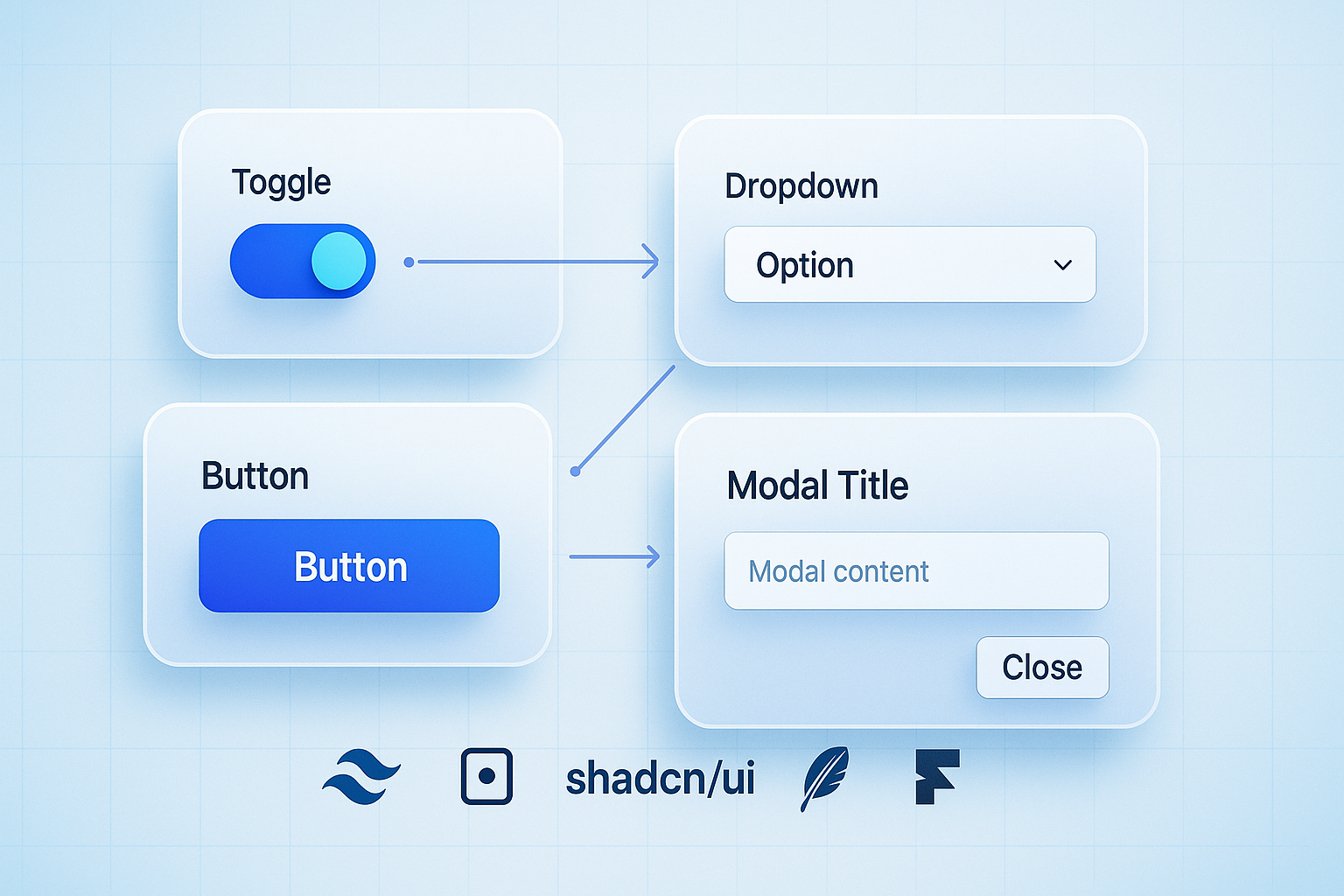
Atomic Block 2.1: Core Concept – CSS Variables in Tailwind v4
Tailwind v4 compiles classes like bg-[--primary-color] from your config. Define themes as variable sets (e.g., light/dark). Switch by updating :root styles based on state, enabling seamless transitions without full rebuilds.
Atomic Block 2.2: Setup – Configure Tailwind for Themes
In tailwind.config.js, define CSS variables under theme.extend.colors. Use modes for variants.
// tailwind.config.js
module.exports = {
  content: ['./app/**/*.{js,ts,jsx,tsx,mdx}'],
  theme: {
    extend: {
      colors: {
        'primary-light': 'var(--primary-light, #ffffff)',
        'primary-dark': 'var(--primary-dark, #000000)',
        // Add more: accents, backgrounds, etc.
      },
    },
  },
  plugins: [],
  darkMode: 'class', // Enables dark: variants, but we'll use custom
};
In global CSS (e.g., app/globals.css):
@tailwind base;
@tailwind components;
@tailwind utilities;

:root {
  --primary-light: #f0f4f8; /* Endsights Light */
  --accent-light: #4a90e2;
  --primary-dark: #1e1e1e; /* Simplified Dark */
  --accent-dark: #ff4500;
}

/* Theme classes */
.endsights {
  --primary: var(--primary-light);
  --accent: var(--accent-light);
}

.simplified {
  --primary: var(--primary-dark);
  --accent: var(--accent-dark);
}
Atomic Block 2.3: State-Driven Theme Switching
Use the app store to track sector and apply classes to the document root.
// app/layout.tsx (or a wrapper component)
'use client';

import { useEffect } from 'react';
import { useAppStore } from '@/lib/store';

export default function RootLayout({ children }: { children: React.ReactNode }) {
  const sector = useAppStore((state) => state.sector);

  useEffect(() => {
    document.documentElement.classList.remove('endsights', 'simplified');
    document.documentElement.classList.add(sector.toLowerCase());
  }, [sector]);

  return (
    <html lang="en">
      <body className="bg-[--primary] text-[--accent]">{children}</body>
    </html>
  );
}
Update sector via UI (e.g., a sector selector button similar to Atomic Block 1.3).
Atomic Block 2.4: Applying Themes in Components
Use variable-based classes in your JSX. This works across 2D UI and even R3F (via material props).
// Example component
<div className="bg-[--primary] text-[--accent] p-4">
  Current Sector: {sector}
</div>

// In R3F: Pass variables to materials
<meshStandardMaterial color="var(--accent)" /> // But parse in JS if needed
For R3F, extract variables with getComputedStyle(document.documentElement).getPropertyValue('--accent').
Atomic Block 2.5: Tips and Best Practices
- Transitions: Add
transition-colors duration-300to elements for smooth swaps. - Tailwind v4 Perks: Leverage arbitrary values like
bg-[hsl(var(--primary-hsl))]for advanced control. - Accessibility: Ensure contrast ratios (use tools like WAVE). Provide a manual override for user preferences.
- Next.js 15 Integration: Server-render initial theme, hydrate client-side for dynamic changes.
- Lore Tie-In: Sync theme with 3D elements—e.g., change lighting in R3F based on sector state.
This guide equips you to build fluid Web3D experiences. Experiment, iterate, and explore R3F’s ecosystem for more advanced bridges like physics or multiplayer syncing!
For dynamic motion beyond static 3D scenes, learn how to build procedural browser animations with GSAP and WebGL that respond to user interaction in real time.
For multiplayer experiences, our cross-platform player identity guide covers building persistent profiles that follow players across Roblox, web, and mobile. If you’re building game assets for the 3D web or Roblox, see how our Adellion Forge pipeline produces optimized, high-fidelity 3D assets at scale. To learn the 3D modeling fundamentals these pipelines depend on, start with our beginner-friendly Blender tutorial. And for a look at how AI is accelerating every stage of game asset creation, read our exploration of AI in video game development. To see those AI techniques applied to NPC behavior in Roblox specifically, our Roblox NPC pathfinding and AI behavior guide covers pathfinding, behavior trees, and combat AI.